
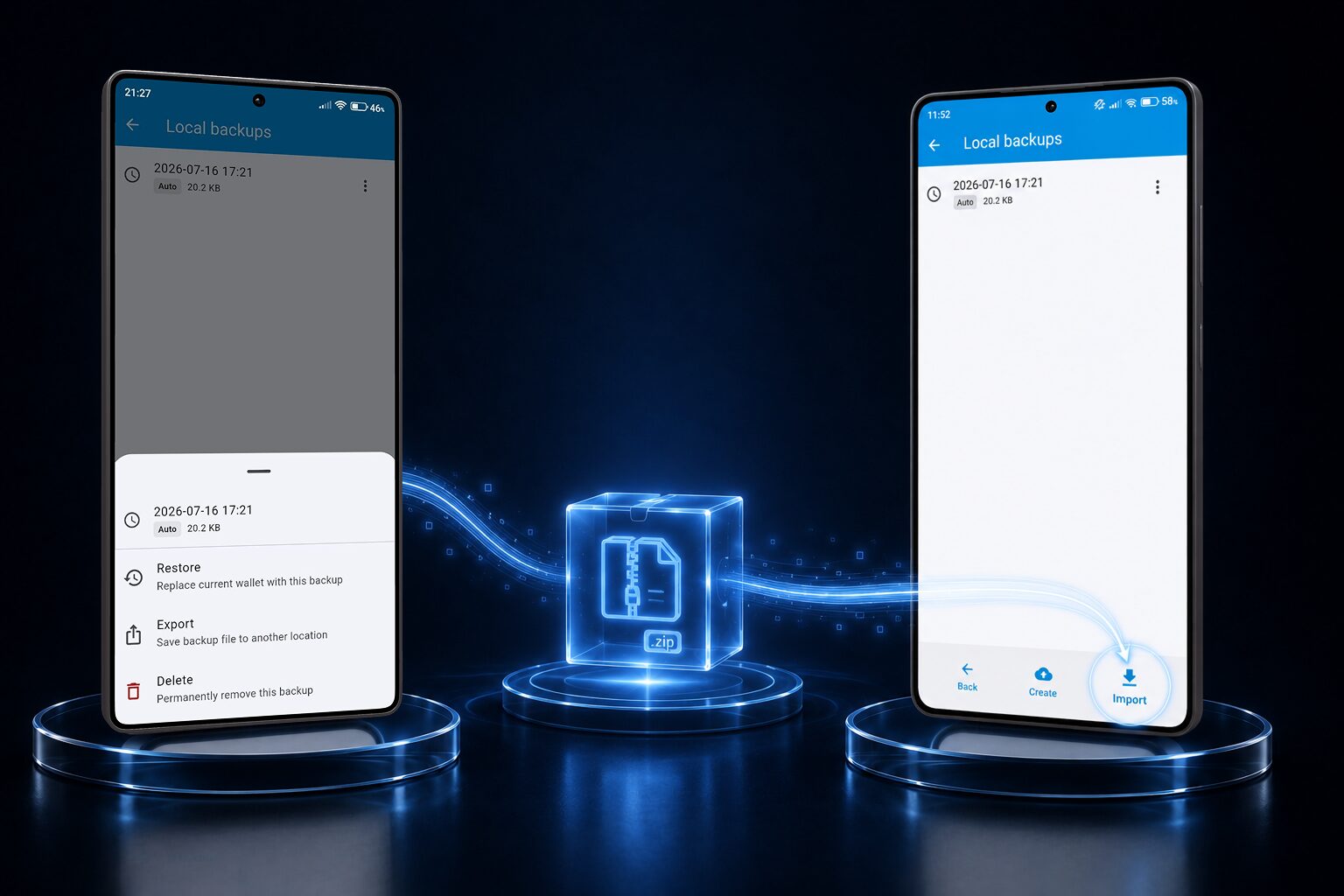
New phone day is exciting, right up until you remember all your passwords live in an app that — by design — doesn’t automatically sync anywhere. That’s the trade-off we talk about a lot: no cloud account means no invisible sync, but it also means nobody’s servers ever see your vault. The good news is that moving it yourself only takes a few minutes.
Step 1: Make sure you have a recent backup
IntelliWallet automatically creates a backup of your vault every week and keeps it on your device. Open the app on your old phone and go to Backup to see your most recent one.
- If you have Premium, you can also tap Create backup to make a fresh one right now, so you don’t have to rely on however old last week’s automatic backup is.
- If you’re on the free plan, use the most recent automatic backup listed. If it’s more than a few days old and you’ve added new entries since, add them again after restoring, or consider making one manual backup before you switch phones.
Step 2: Export the backup file
Tap the backup you want to use, then choose Export. This opens your phone’s normal share sheet — the same one every app uses — so you can send the file wherever you’d like:
- Directly to your new phone via a cable, AirDrop, or Quick Share
- A cloud storage app you already use and trust (this is your choice of storage, not something IntelliWallet does automatically)
- A USB drive, if you’re moving between computers along the way
IntelliWallet doesn’t upload this file anywhere by itself — exporting just hands it to your phone’s share sheet, and you decide where it goes from there.
Step 3: Get the file onto your new phone
However you sent it in Step 2, make sure the backup file ends up somewhere your new phone can open it — its Files app (iOS) or the file manager / Downloads folder (Android) both work fine.
Step 4: Install IntelliWallet and open the backup
Install IntelliWallet from the App Store or Google Play on the new phone. On first launch, choose the option to import an existing backup, then locate the file you transferred in Step 3 — or just tap the backup file itself from your Files app and choose “Open with IntelliWallet.”
You’ll be asked for your master password — the same one you already use. That’s what decrypts the vault; the backup file itself is useless without it, which is exactly the point.
Step 5: Check everything, then tidy up
Take a minute to confirm your entries and folders look right on the new phone. Once you’re confident everything transferred correctly, delete the exported backup copy from wherever you sent it in Step 2 (your cloud app, your computer’s downloads folder, etc.) — it’s still encrypted, but there’s no reason to leave stray copies scattered around once you’re done with them.
That’s it — no account, no server, no cloud sync to configure. Just your vault, moved deliberately, by you.